User guide
PCD Club Calendar
How to get started, sign in, navigate views, and manage event participation.
Getting started
Open the calendar and understand what you see before signing in.
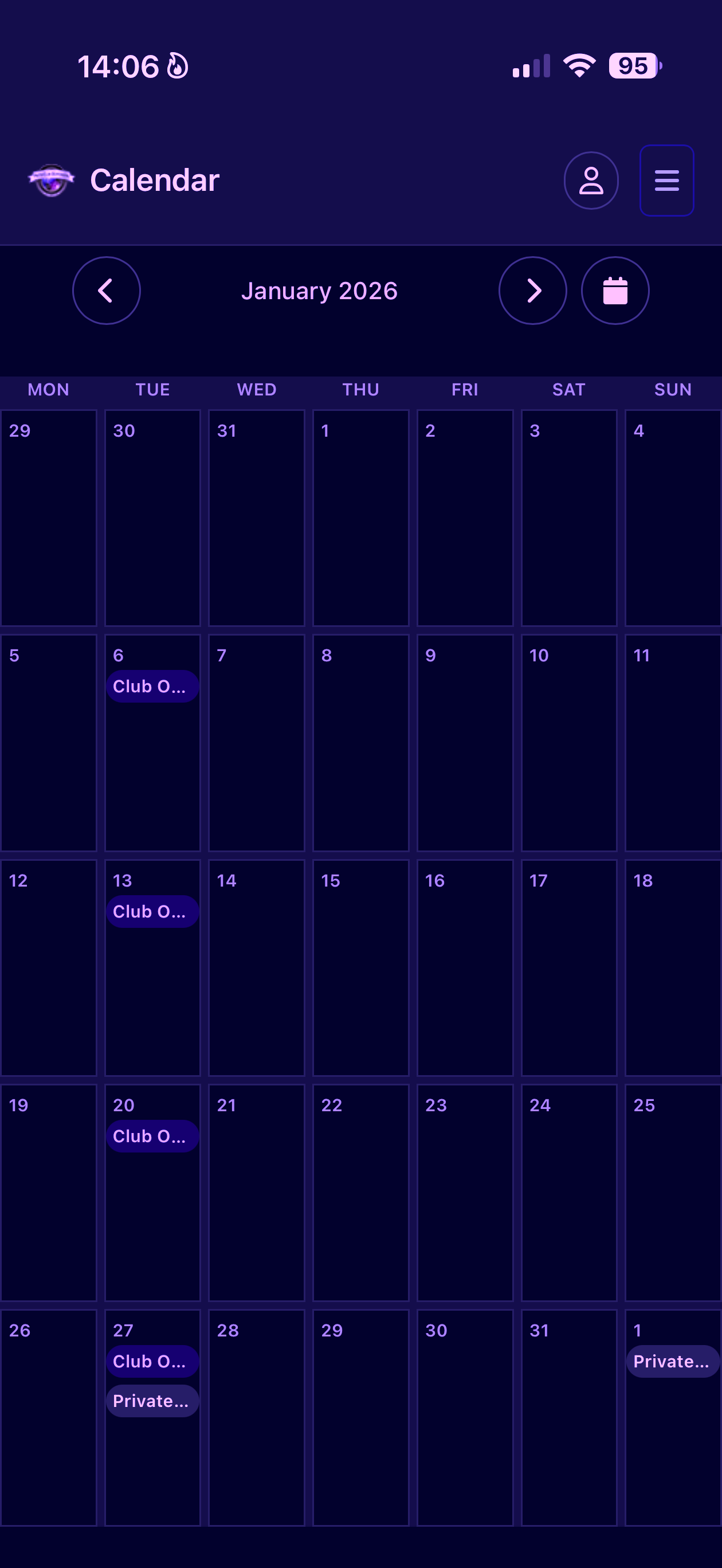
Open https://calendar.pcd.lu on your desktop or mobile device.
The default view shows the current date and only public events.
To see all club events, you need to authenticate.
Authentication
Use the magic-code flow to sign in and view your role.
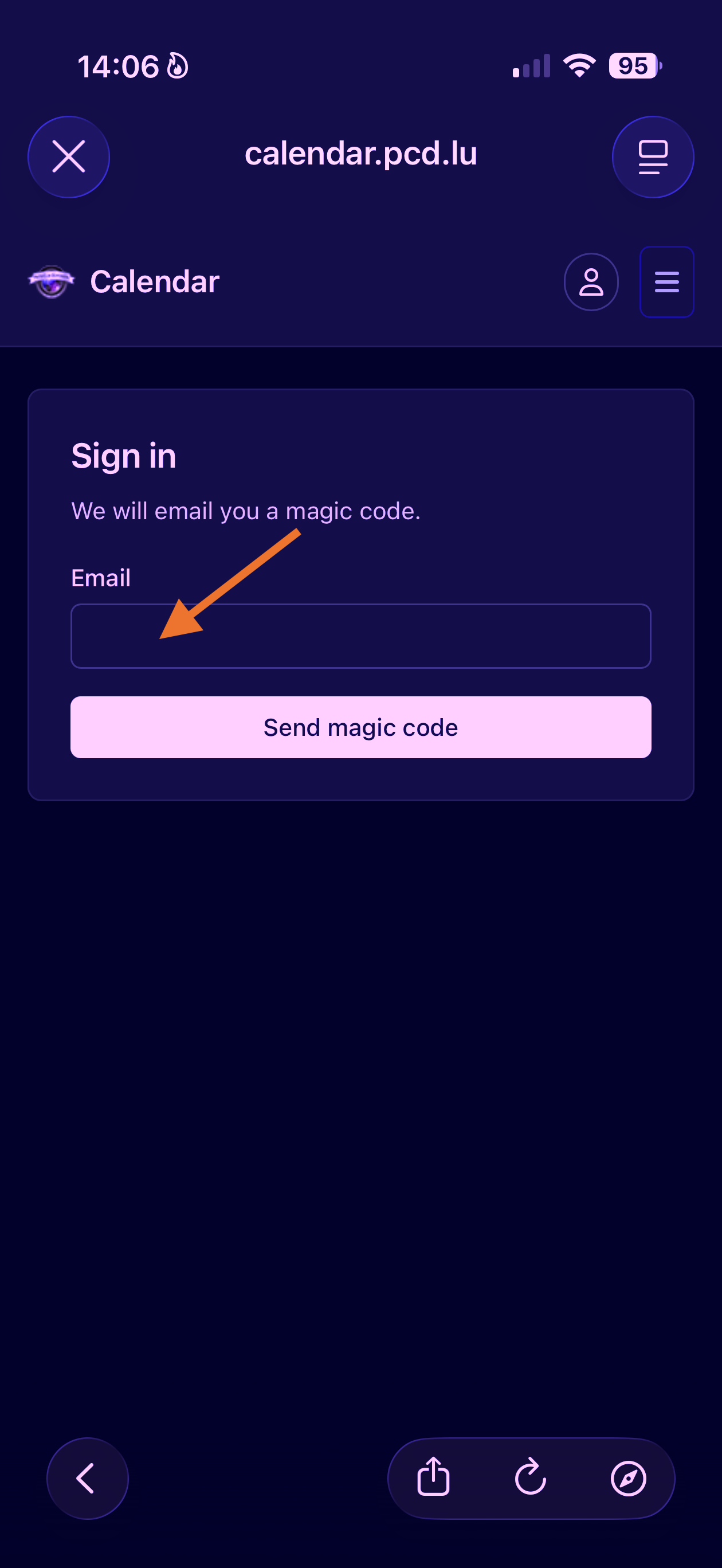
Click the user icon in the top-right menu bar and select “Sign In”.
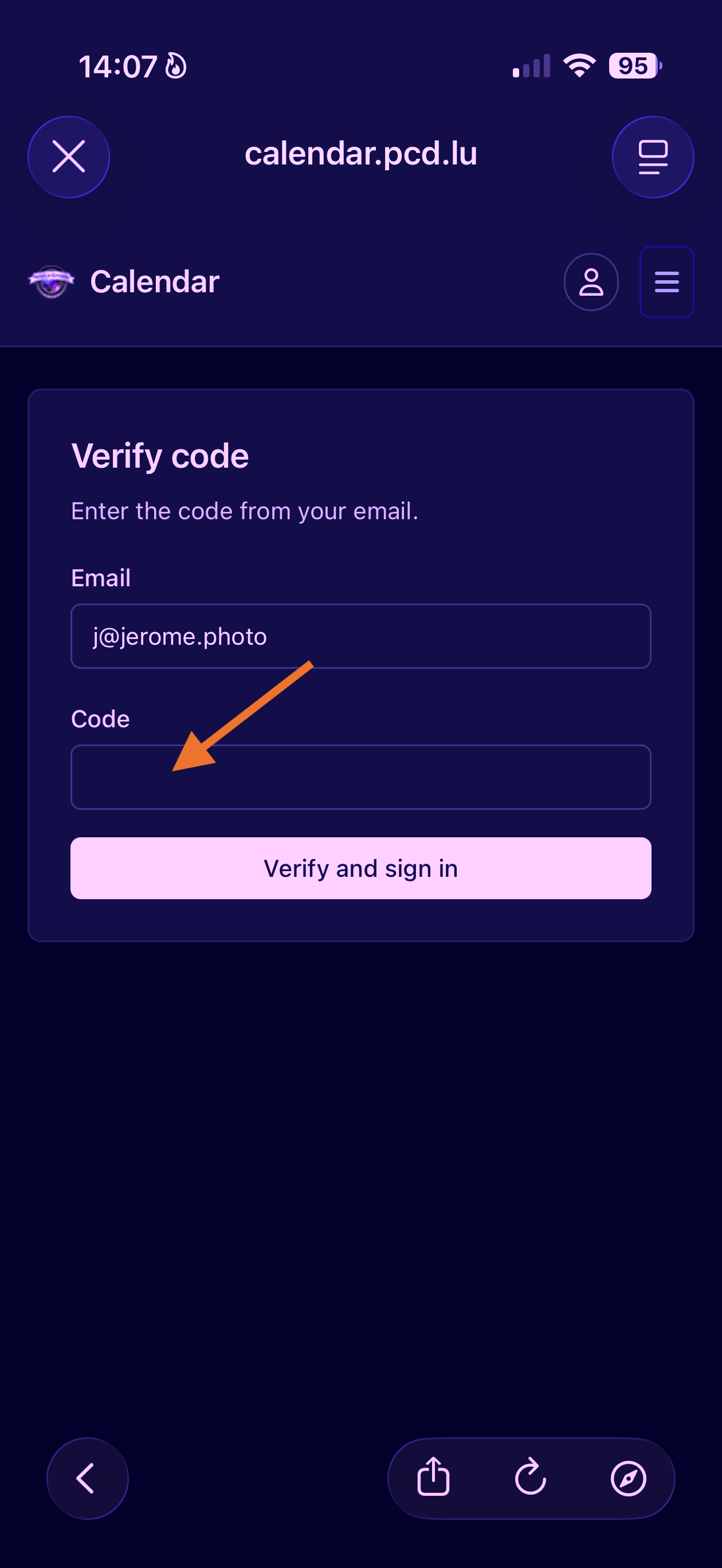
Enter your email address. You will receive a magic code by email. Enter the code to complete sign-in.
The user icon turns green when you are authenticated.
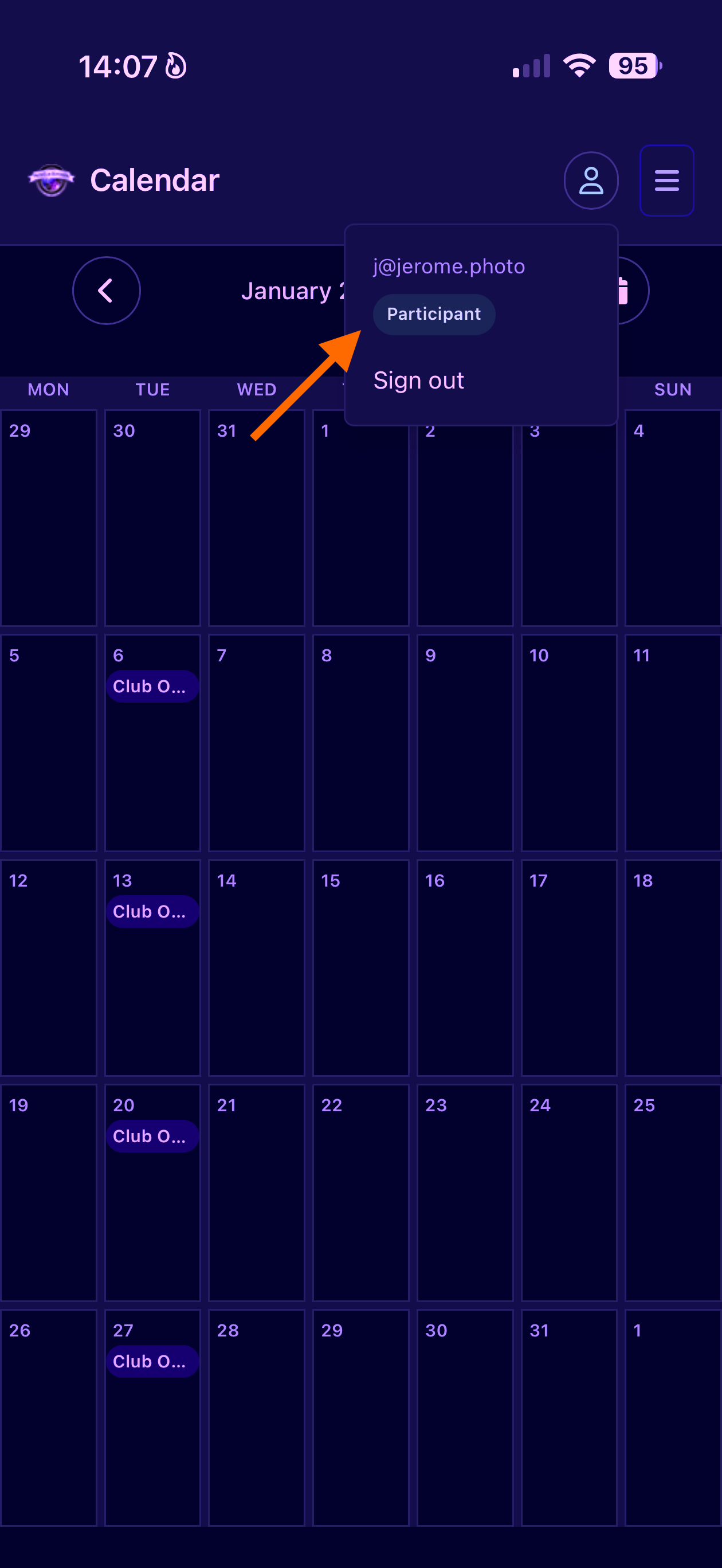
To see your role, click the user icon again. Your email and the role “Participant” will be shown.
Navigation
Switch between views and move through dates quickly.
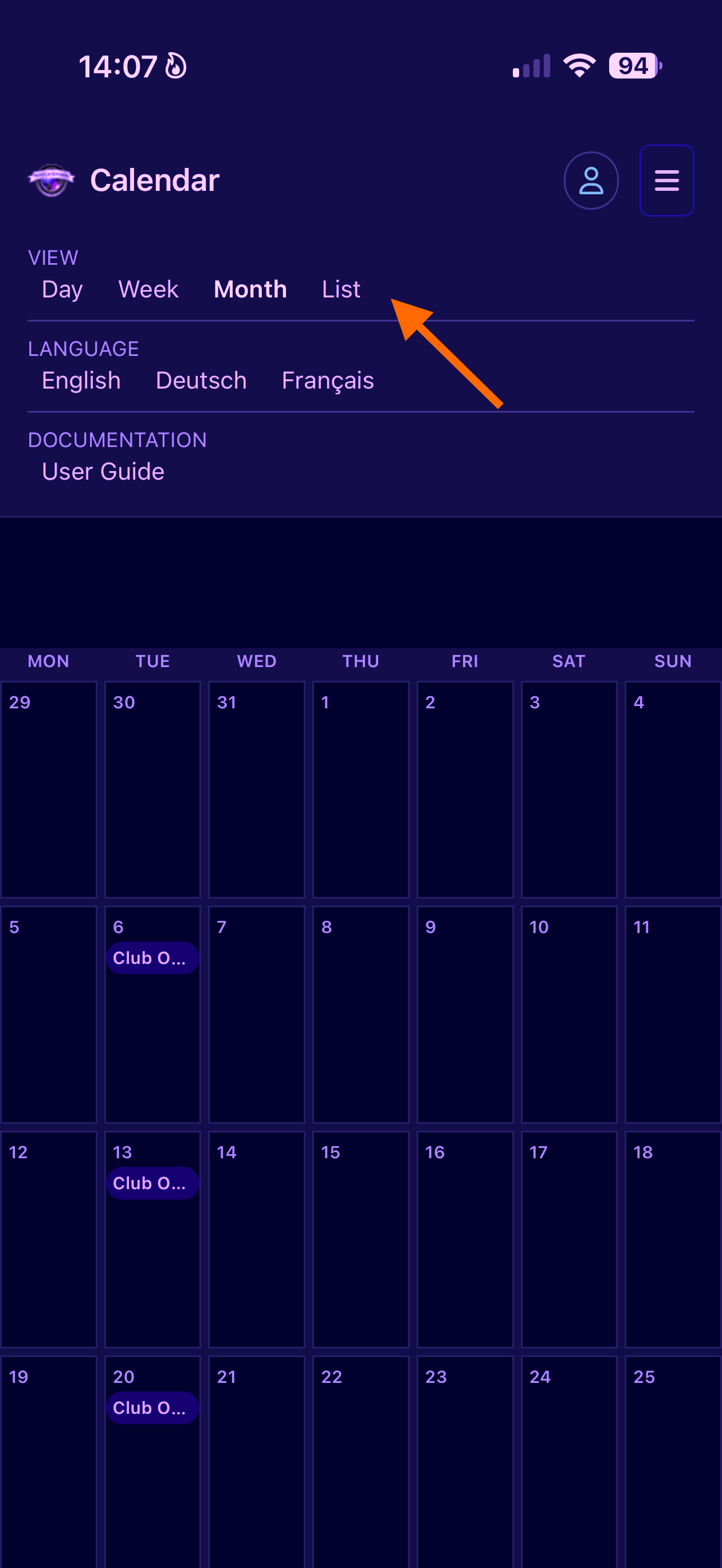
You can switch between the following views:
- Day view
- Week view (on mobile, week view shows only 3 days)
- Month view
- List view
On large screens, use the top menu links. On mobile, open the menu from the top-right button.
Use the left and right arrow buttons to move to the previous or next day, week, or month. On mobile, you can also swipe.
Event details
Open an event, register, and receive an invitation.
Click any event in a view to open its details.
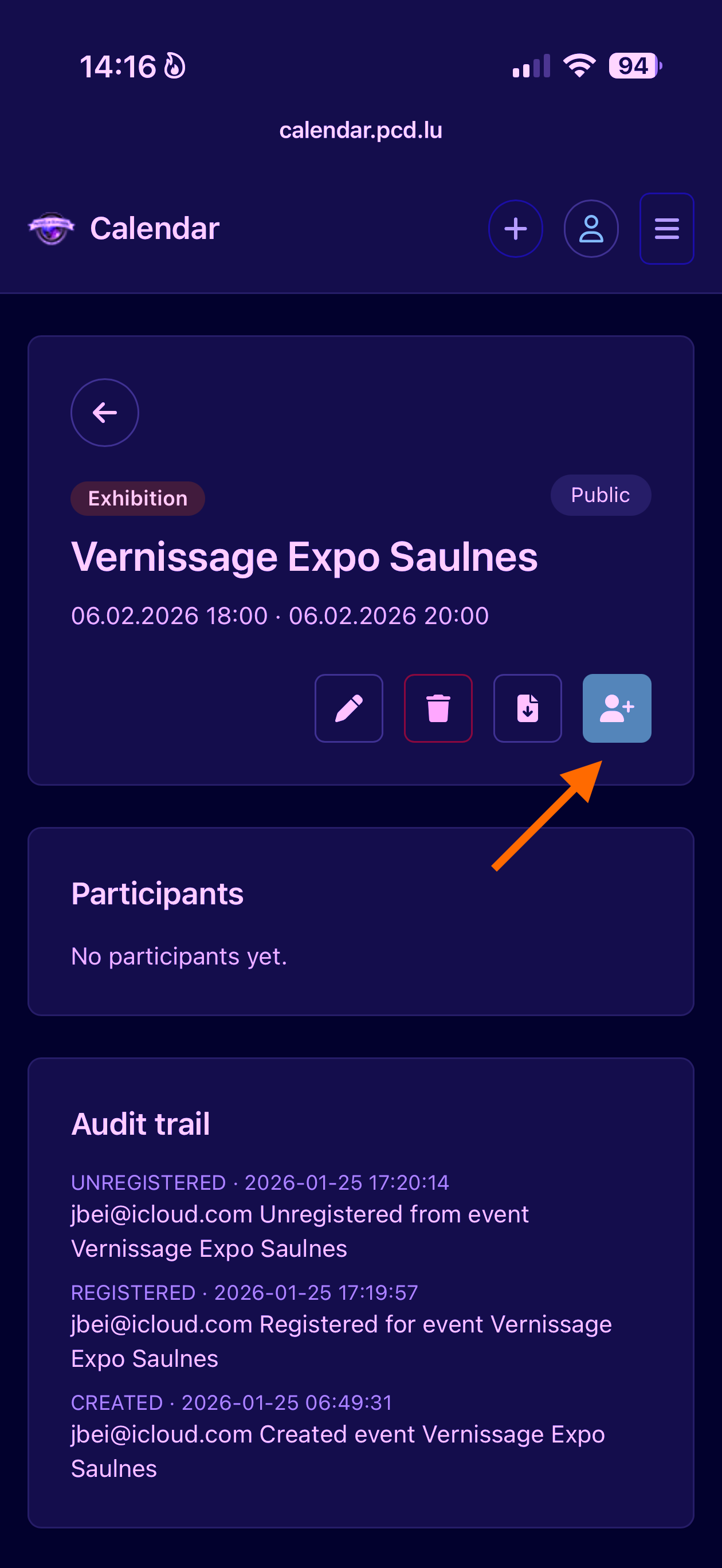
In the event details view, click the User+ icon to register.
Registering adds you to the participant list and sends a calendar invitation by email.
Book a studio session
Participants can create private studio events.
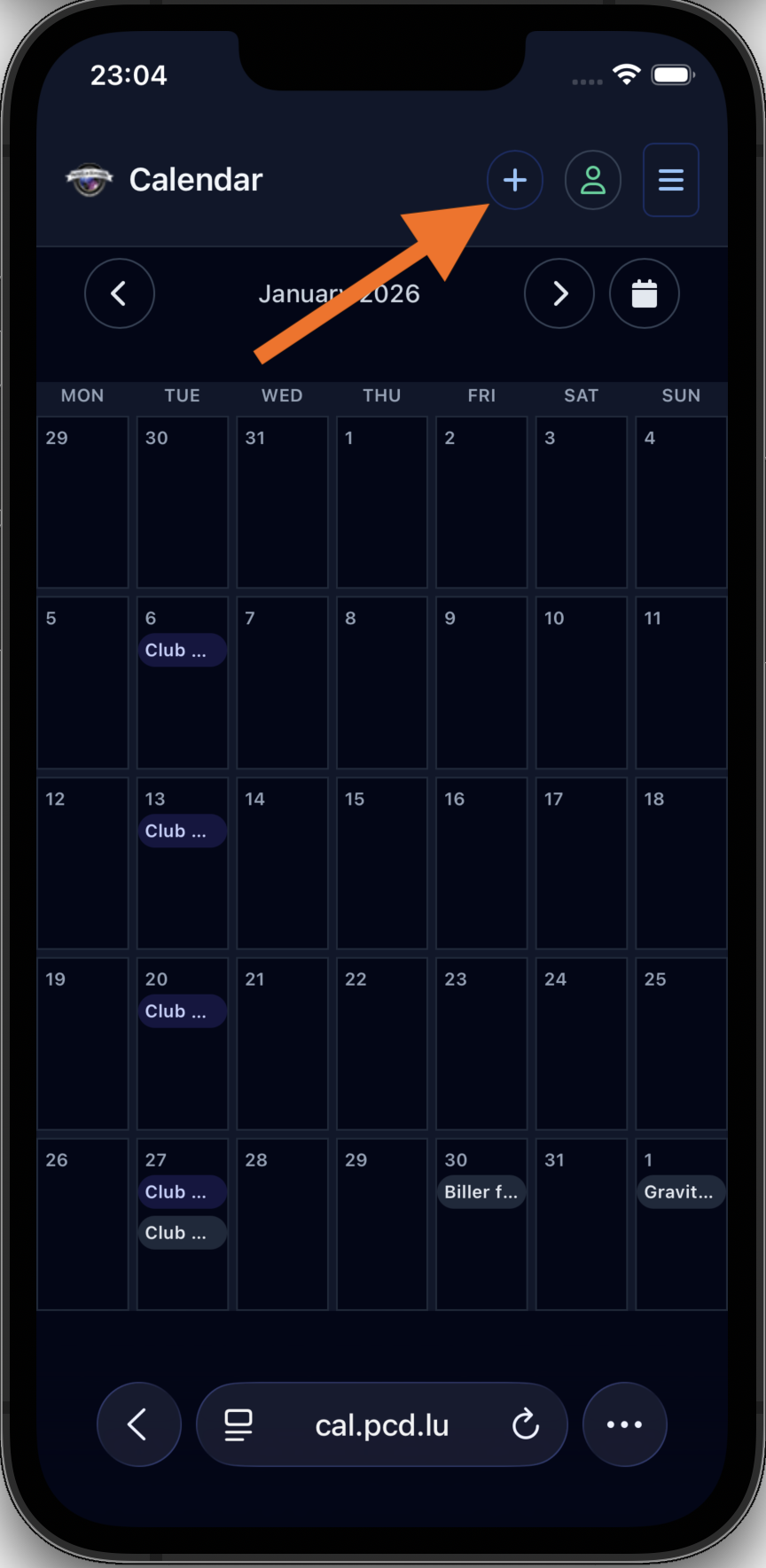
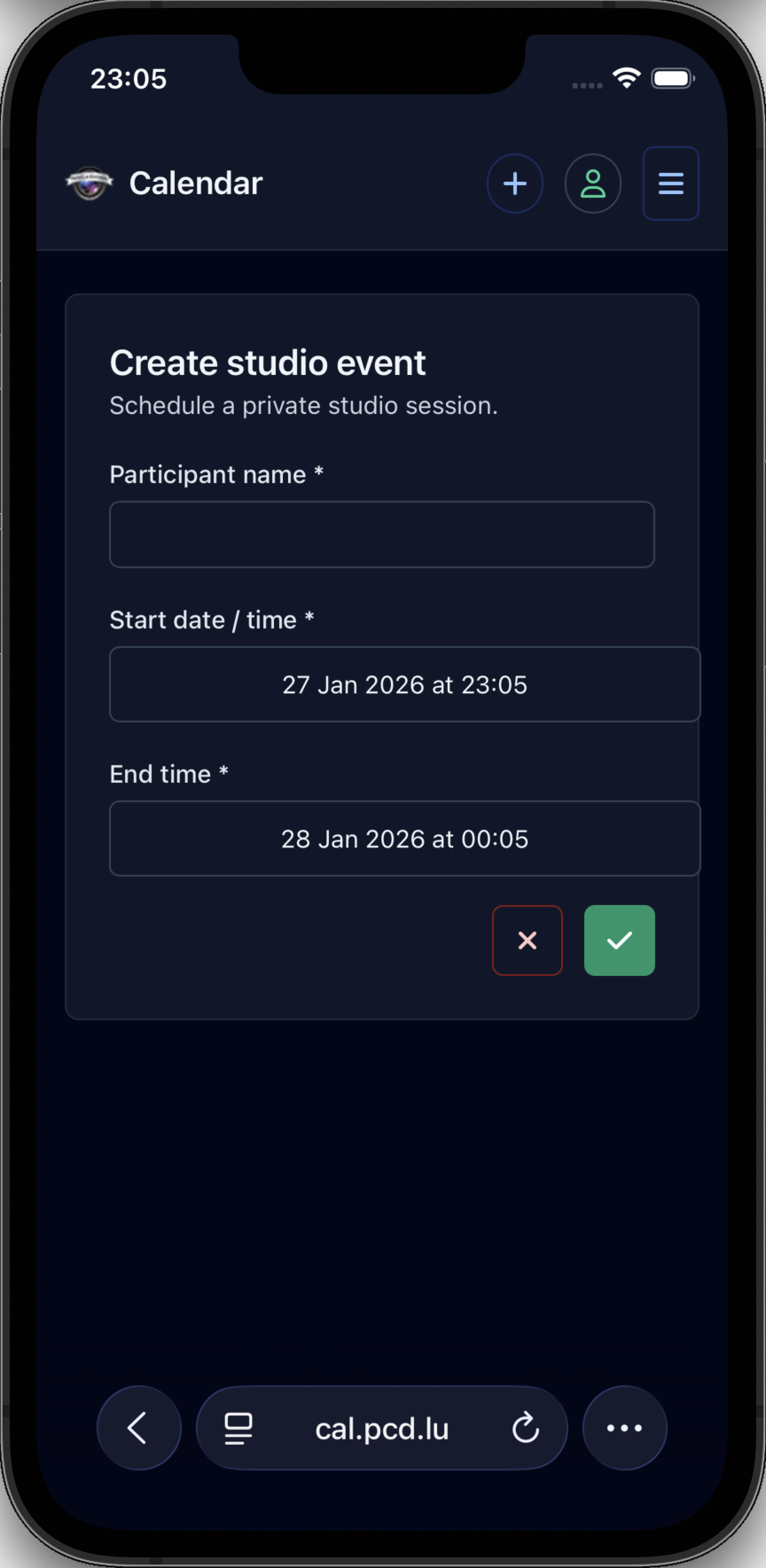
Tap the + button in the top bar to open the studio booking form.
Enter the participant name, then choose a start date/time and an end time (same day).
Studio events are always private. When you submit, you are registered automatically, the calendar invite downloads, and you receive a confirmation email.